Introduction
Want an AI assistant that never sleeps? A bot that watches your channels 24/7? An agent that works through tasks while you are away?
Running agents on a laptop is not sustainable – it sleeps, travels and reboots for updates. A cloud VPS works, but the monthly bill keeps adding up year after year. The answer is a dedicated, always-on AI agent node.
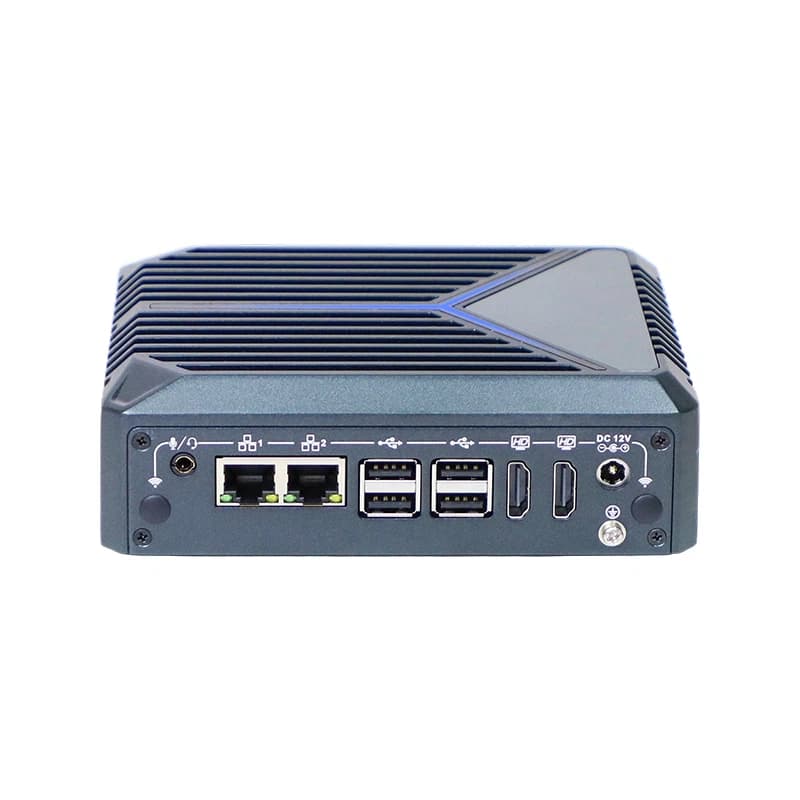
This guide shows how to set up ClawBrain (IWILL N1522) as a 24/7 AI agent host running OpenClaw with Claude or GPT and channels for Discord and Telegram. Availability, hardware configuration and software set-up are confirmed with a specific quotation.
What you will build: a headless, minimal Ubuntu Server; the OpenClaw agent framework; Claude/GPT API integration; Discord or Telegram connectivity; Tailscale for secure remote access; and automatic start and recovery after a reboot.
Hardware requirements
| Component | ClawBrain (IWILL N1522) |
|---|---|
| Processor | Intel Processor N150 (4C/4T, up to 3.6 GHz) |
| Memory | 8 GB DDR5 minimum (16 GB recommended, the maximum) |
| Storage | 128 GB NVMe SSD minimum |
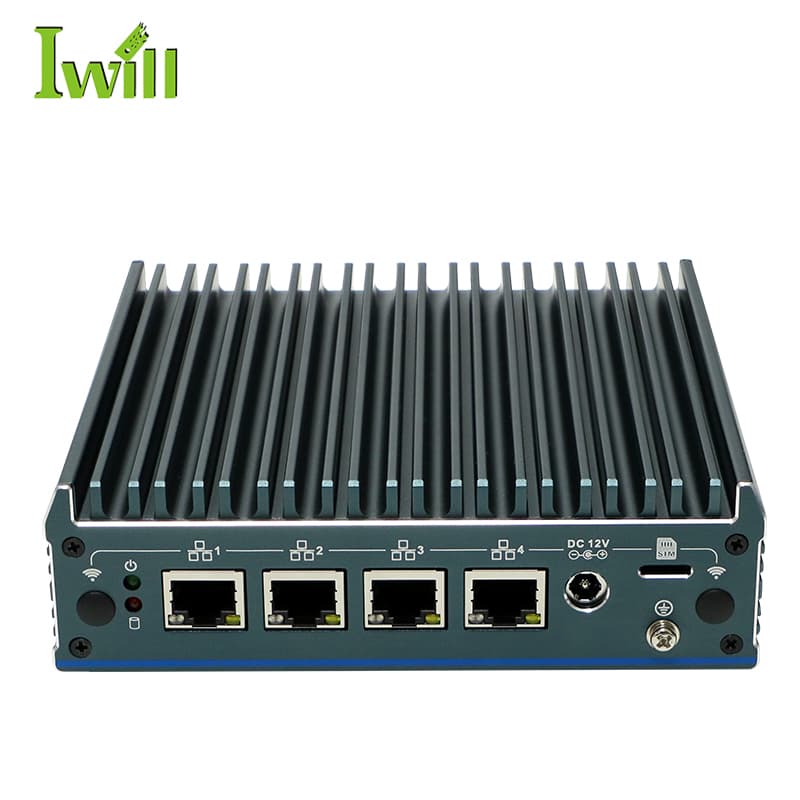
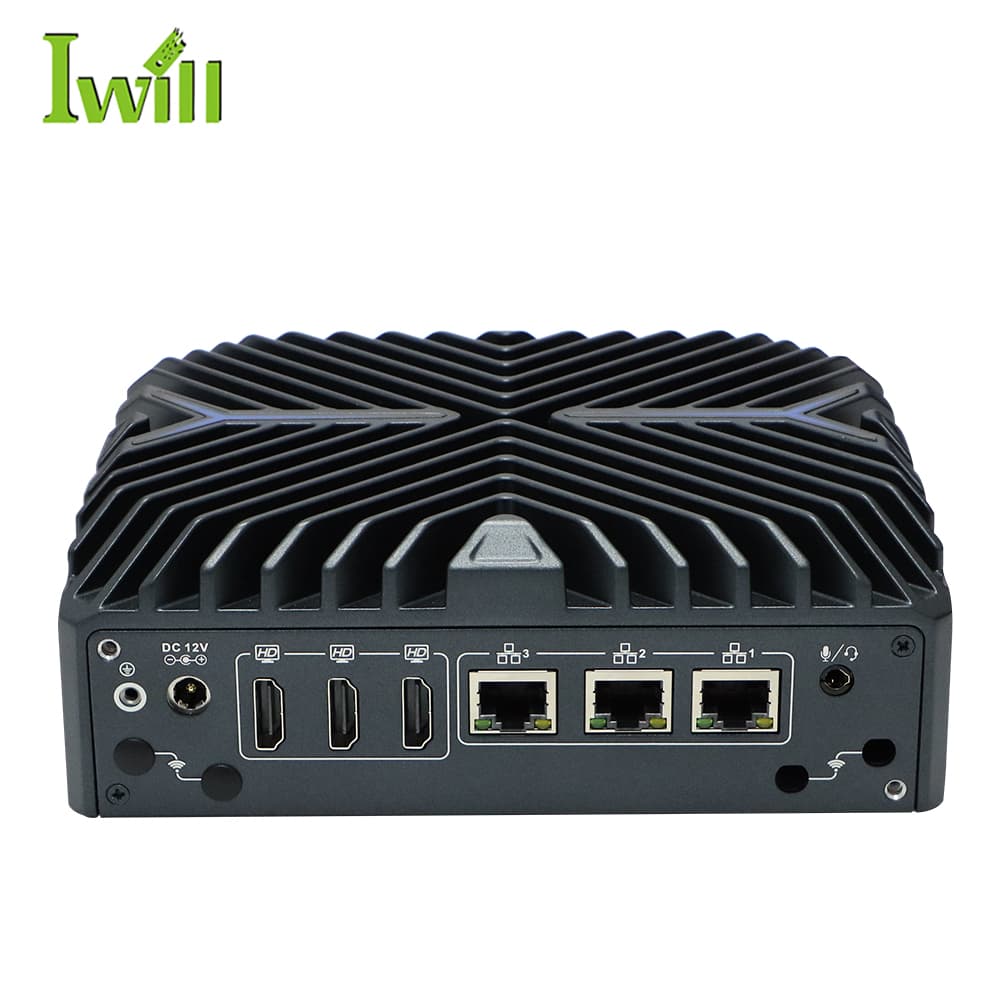
| Network | 2× Realtek RTL8111H Gigabit LAN |
| Power | 9–36 V DC wide-range input, fanless aluminium chassis |
Why ClawBrain? A fanless aluminium case means silent operation with no fan to fail. Dual Gigabit LAN lets you separate network connections. x86 Linux gives broad software compatibility. For an always-on deployment, use a suitable SSD, a ventilated location and basic monitoring.
You will also need
- A USB stick (8 GB+) for the Ubuntu installer
- An Ethernet cable
- A monitor and keyboard (initial set-up only)
- Another computer to download and write the ISO
At least one API key
- Anthropic Claude: console.anthropic.com
- OpenAI GPT: platform.openai.com
- Google Gemini: aistudio.google.com
- Moonshot Kimi: platform.moonshot.ai (good price/performance)
Phase 1: install Ubuntu Server (15 minutes)
Download Ubuntu Server 24.04 LTS (64-bit, about 2.5 GB) from ubuntu.com/download/server. On Windows, write it to USB with Rufus (partition scheme GPT). On Linux or macOS:
# Find the USB device
lsblk            # Linux
diskutil list    # macOS

# Write the ISO (replace /dev/sdX with your device!)
sudo dd if=ubuntu-24.04-live-server-amd64.iso of=/dev/sdX bs=4M status=progress
sync
Connect the USB stick, HDMI monitor, keyboard and an Ethernet cable to your router, then press F7 or F12 at boot to start from USB. In the installer choose:
Installation type: Ubuntu Server (minimized)
Server name:       n1522
Username:          openclaw
Password:          (a strong password)
SSH:               Install OpenSSH server ✓
Snaps:             (skip)
Installation takes 5–10 minutes. Reboot, remove the USB stick, log in and update:
sudo apt update && sudo apt upgrade -yPhase 2: install Tailscale (5 minutes)
Tailscale gives you secure remote access without opening any ports on your router.
curl -fsSL https://tailscale.com/install.sh | sh

# Authenticate (prints a URL - open it on your phone or laptop)
sudo tailscale up

# Note the Tailscale IP (e.g. 100.x.x.x)
tailscale ip -4
Test SSH from a laptop that also runs Tailscale:
ssh openclaw@100.x.x.xIf SSH works, unplug the monitor and keyboard – ClawBrain is now headless.
Phase 3: install Node.js (5 minutes)
OpenClaw requires Node.js 20 or later.
curl -fsSL https://deb.nodesource.com/setup_20.x | sudo -E bash -
sudo apt install -y nodejs

node --version   # v20.x.x
npm --version    # 10.x.x
Phase 4: install OpenClaw (10 minutes)
sudo npm install -g openclaw

# Creates ~/.config/openclaw/ with a default configuration
openclaw init

nano ~/.config/openclaw/config.yaml
Add your keys and choose a default model:
models:
  anthropic:
    apiKey: "sk-ant-xxxxx"   # your Anthropic key
  openai:
    apiKey: "sk-xxxxx"       # optional
  moonshot:
    apiKey: "sk-xxxxx"       # optional

defaultModel: anthropic/claude-sonnet-4-5
Save with Ctrl+O, Enter, Ctrl+X, then test with openclaw chat (type /exit to leave). Keep the config file readable only by the openclaw user: chmod 600.
Phase 5: connect channels (15 minutes)
Option A: Discord bot
- discord.com/developers/applications → New Application → Bot → copy the bot token
- Enable the Presence, Server Members and Message Content intents
- OAuth2 → URL Generator → scopes bot and applications.commands → invite to your server
Option B: Telegram bot
- Message @BotFather → /newbot → choose a name
- Copy the bot token
- Get your user ID from @userinfobot
Option C: web UI only
Enable the gateway on a port such as 18789 with a random token (openssl rand -hex 16), then open http://[tailscale-ip]:18789/#token=…
channels:
  discord:
    enabled: true
    token: "your-bot-token-here"
    allowedGuilds:
      - "your-server-id"      # right-click the server → Copy ID
  telegram:
    enabled: true
    token: "your-telegram-bot-token"
    allowedUsers:
      - 123456789             # your Telegram user ID

gateway:
  port: 18789
  token: "your-secure-token"
Always restrict bots to your own server or user ID – an open bot backed by your API key is an open invitation to run up your bill.
Phase 6: run it as a service (10 minutes)
Create /etc/systemd/system/openclaw.service:
[Unit]
Description=OpenClaw AI Gateway
After=network-online.target
Wants=network-online.target

[Service]
Type=simple
User=openclaw
WorkingDirectory=/home/openclaw
ExecStart=/usr/bin/openclaw gateway
Restart=always
RestartSec=10
Environment=NODE_ENV=production

[Install]
WantedBy=multi-user.target
Enable, start and watch it:
sudo systemctl daemon-reload
sudo systemctl enable openclaw     # start on boot
sudo systemctl start openclaw
sudo systemctl status openclaw

journalctl -u openclaw -f                     # live logs
journalctl -u openclaw --since "1 hour ago"   # last hour
Phase 7: testing (5 minutes)
1. Service
systemctl status openclaw shows active (running).
2. Channels
Message the bot on Discord or Telegram – it should answer via Claude.
3. Web UI
Open the gateway URL from your laptop over Tailscale.
4. Reboot recovery
Run sudo reboot. Within two minutes SSH works and the bot answers again.
Phase 8: extras
Weekly updates
# ~/update-openclaw.sh
#!/bin/bash
sudo npm update -g openclaw
sudo systemctl restart openclaw

chmod +x ~/update-openclaw.sh
crontab -e
# add: 0 4 * * 0 /home/openclaw/update-openclaw.sh
Several personas
personas:
  assistant:
    model: anthropic/claude-sonnet-4-5
    systemPrompt: "You are a helpful assistant..."
  coder:
    model: anthropic/claude-sonnet-4-5
    systemPrompt: "You are an expert programmer..."
Configuration backup
cp -r ~/.config/openclaw ~/openclaw-backup-$(date +%Y%m%d)Troubleshooting
OpenClaw will not start
Check journalctl -u openclaw -n 50. Common causes: an invalid API key, the port already in use, or Node.js older than 20.
The bot does not reply
Check the service status, the bot token, the Discord message intents and that your ID is in allowedUsers.
No SSH after a reboot
Check tailscale status. If it has stopped, connect a monitor and run sudo tailscale up.
High RAM usage
Ubuntu Server uses under 1 GB and OpenClaw 200–400 MB. If usage is higher, look for runaway processes with htop.
Cost structure
| Option | Up-front cost | Recurring cost | You own the hardware |
|---|---|---|---|
| ClawBrain + API | One-off | API usage only | Yes |
| Cloud VPS + API | None | Monthly subscription + API | No |
| Mac mini + API | One-off, higher | API usage only | Yes |
API costs depend on actual usage. Unlike a VPS, ClawBrain has no monthly subscription for the host itself.
Conclusion
You now have a 24/7 AI agent server that:
- stays on and survives reboots
- is reachable from anywhere through Tailscale
- talks to you on Discord or Telegram
- works with Claude and GPT
- uses minimal resources on industrial-grade hardware
Cost: one-off hardware plus pay-as-you-go API usage. Time: about 60–90 minutes. Result: your own AI agent that never sleeps.
For maximum security: add a ClawFirewall (N1241) for network isolation – the “Protected Node” bundle is quoted on request. Running several assistants? See how to host many agents on one mini PC with Proxmox.
Hardware for always-on AI agents
Fanless x86 platforms for agent hosting and network protection.